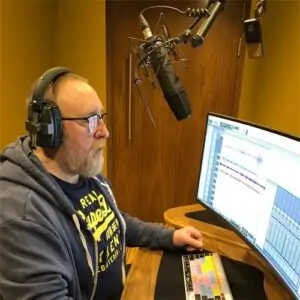
Support Center Workflows Voiceover from a home studio
Your booth, their session.
How to record broadcast-quality voiceover from home using Source-Connect Talent — written for the person holding the script, not the one running the DAW.
The scenario
You are the talent, and the studio is somewhere else
You have a booth, a microphone you trust and a session booked with a studio in another city. What the client needs is not a video call of your voice; it is your microphone, at full quality, arriving on their timeline while they direct you.
Source-Connect Talent is the standalone application that does that. It makes a bi-directional connection to the client’s studio: your microphone goes to them uncompressed and at full frequency, their talkback comes back to your headphones, and you take direction as though you were in the room. Nothing here needs a network engineer, and nothing here is a file you have to send afterwards.
What you need
Before you start
- The standalone Source-Connect Talent application, and a Source Elements username the client can find you by.
- Your microphone on an audio interface, with the channel it is on known — you will select that channel by name in the app.
- Headphones, not open speakers. A speaker in a booth puts the client’s talkback back into your microphone, and they are the ones who hear it.
- A working connection, tested before the session rather than during it. Support’s network configuration and bandwidth page is where the requirements are stated.
- A booth, a travel booth or a treated room. Source-Connect carries what your microphone hears; it does not tidy it up on the way.
The setup
Eight steps, in order
- Set your input and output. Launch the standalone Source-Connect Talent application and open Settings with the gear icon. Set Audio Input to the interface channel your microphone is on, for example Channel 1. Set Audio Output to your headphones.
- Give the client your username. Send your Source Elements username to the studio, producer or director booking you; that is how they find you and add you to their contacts.
- Decide how you accept requests. In your source-elements.com dashboard settings, either turn on auto-accept for contact requests or make sure you get the email that asks you to approve them, so an invitation on the morning of a session does not sit unread.
- Test the line before the session, not during it. Source Elements publishes an Echo contact for exactly this purpose; support’s article on testing your connection with an Echo contact walks the test. Doing it the day before means you find a problem on your own time rather than in front of a client.
- Log in ahead of your call time. Launch Source-Connect Talent and sign in before the booked start, so you are already visible when the client goes looking for you.
- Accept the connection, then listen. Wait for the client’s connection request and click Accept. You should hear them in your headphones; confirm that you can hear them clearly before you start reading.
- Do not disconnect the moment you stop. If your client is using Auto Restore and Replace, leaving early is the one thing that costs them the session. Stay logged in to Source-Connect until they have told you they are finished.
- Check your files, then take a copy if you want one. Open the Auto Restore / Replace tab, click the most recent session with that client, and check the middle panel: every file should read Restored or Restore Not Required. If they are also running Replacements, wait for those to finish. The session entry in the left panel carries an option on its right-hand side to download a backup file for your own records.
What good looks like
How you know it worked
- You hear the client in your headphones as soon as you accept the request, and they can direct you between takes.
- Nothing of theirs comes back at them. If they mention an echo, it is your monitoring, not the connection.
- At the end of the session every file in the Restore / Replace tab reads Restored or Restore Not Required, and any Replacement the client asked for has finished.
- You leave with a backup of the session if you wanted one — and the client has full-quality audio without you uploading anything.
When it does not
The things that actually go wrong
Each one has a support article under it. These are worth reading before a session rather than during one.
The client says they cannot find you
Either they have the wrong username, or their request is waiting on an approval you have not seen. Both live in your settings, and both are cheaper to fix the day before than ten minutes before a read.
Configuring your Settings in Source-Connect TalentEcho, or the client hears themselves
The setup step that prevents this is monitoring on headphones rather than open speakers: a speaker puts the client’s talkback back down your microphone. Check the input and output you selected in Settings as well.
Setting up your Audio Input and Output in Source-Connect TalentThe connection is not stable
The requirements and the configuration are published, and the Echo contact is how you check your own end before anybody starts guessing about the other one.
Testing your connection with an Echo contact- It is your first time in the application. Onboarding with Source-Connect Talent covers the account, Getting Started with Source-Connect Talent 4 covers the first run, and Talent 4 at a first glance names the parts of the window.
- You want to walk the connection itself. Starting a 1-1 session in Source-Connect Talent is the session, step by step, from your side.
Official source
Where this comes from
The official support hub
The introduction this workflow is published under, and the Source-Connect Talent 4 documentation set it opens.
Introducing Source-Connect Talent 4Never lose a take
The feature that protects the client’s recording from your internet, and the five minutes at the end of a session where it is won or lost.
Automated backup takes with Auto-Restore in Source-Connect TalentThe other side of the glass
What the engineer is setting up while you are setting up yours — useful when a client asks you something about their end.
High-fidelity remote voiceover with Source-Connect Studio